Call Us: 386-451-7222
How to Set Up a Hybrid Presentation So Everyone Can Take Part

Before you give a presentation with people in the room and online, ask a colleague to join from another room. Have them use the same meeting link as your audience. Ask them to tell you what they can see, hear, and do.
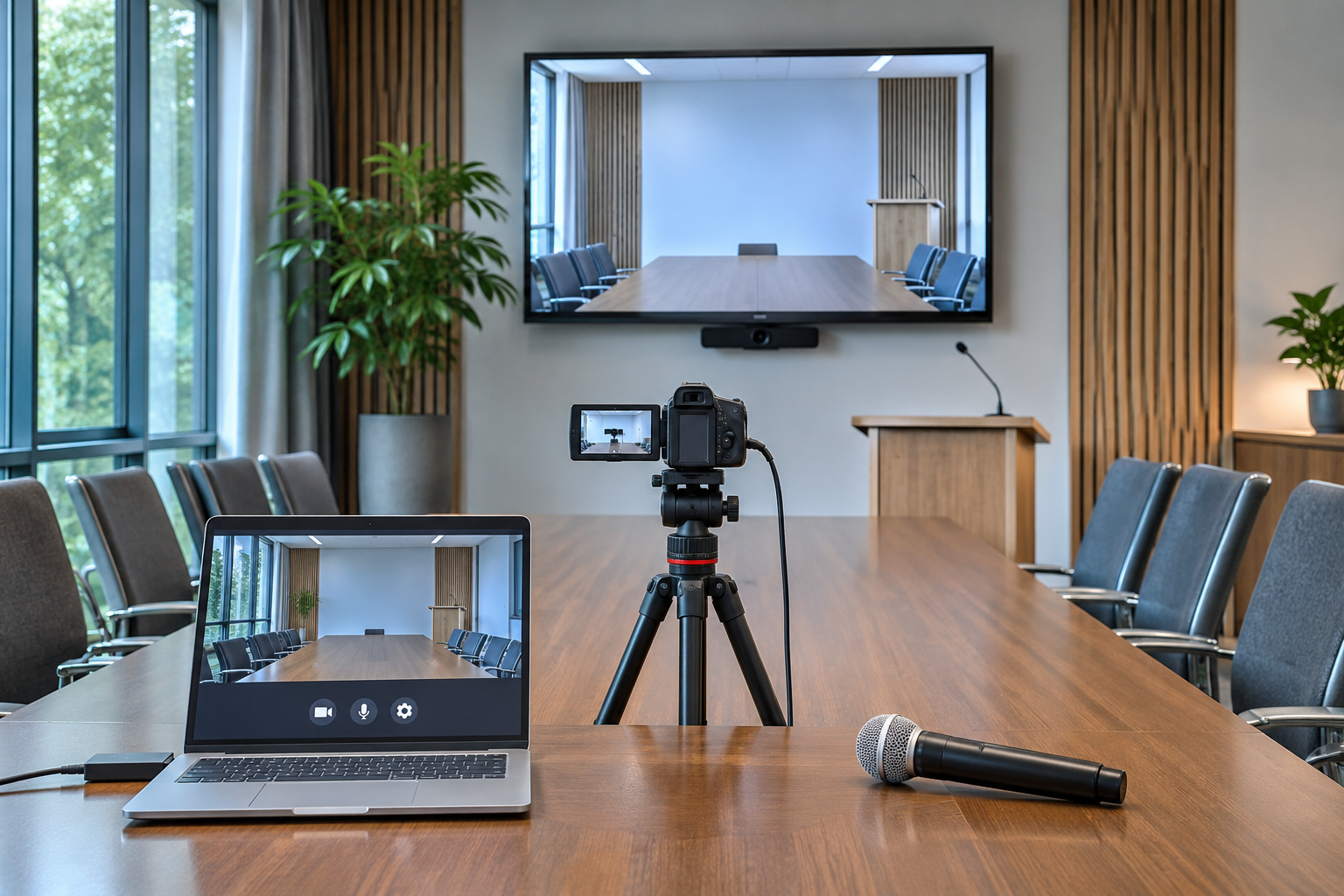
Use the camera, microphones, and slides you’ll use during the presentation. A quick check at your desk tells you whether your laptop works. Testing from the room tells you whether people online can follow the presentation you’re actually going to give.
Check the sound and the screen
Speak from where you’ll stand or sit. Then have someone ask a question from the back of the room. Ask your colleague if they heard the whole question. If the room microphone misses it, test a handheld microphone and decide who’ll pass it to people when they speak.
Share the slides or demonstration you plan to use. Ask your colleague to read the smallest label the audience needs to see. If it’s hard to read, enlarge it and check again.
If you’ll demonstrate something away from the lectern or meeting table, stand where you’ll do it. Have your colleague check whether the camera shows what your hands are doing. If you’ll switch from slides to a live demonstration, practice switching to the camera view and back. Ask your colleague what appeared on their screen each time.
Plan how people online will take part
Decide who’ll watch the chat and tell you when someone online has a question. If you’re giving people an exercise, have your colleague open the instructions and try it. Before you move on during the presentation, give people online a chance to respond.
If the people in the room will work in pairs, decide whether people online will work in pairs too or do the exercise on their own. Tell both groups how much time they have and how you’ll bring them back. Include that return in your test. That’s when you find out whether people can hear your instructions and know when to stop.
Use the Room Setup and Technology Checklist in the book’s companion resources before your next session.